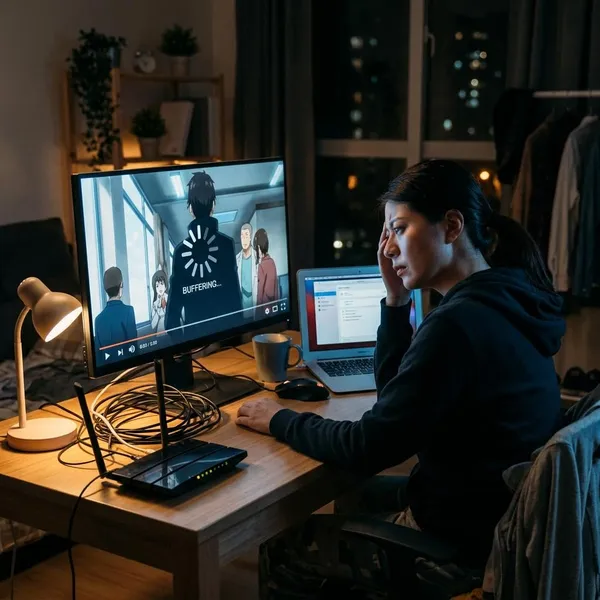
The cleanest way to stream anime on Discord is to use the desktop app, share the exact browser or app window playing the episode, and turn on application audio before you go live. If viewers get a black screen, first find out whether Discord sharing is broken in general or whether the streaming service is blocking capture with DRM. That one distinction saves a lot of wasted troubleshooting.
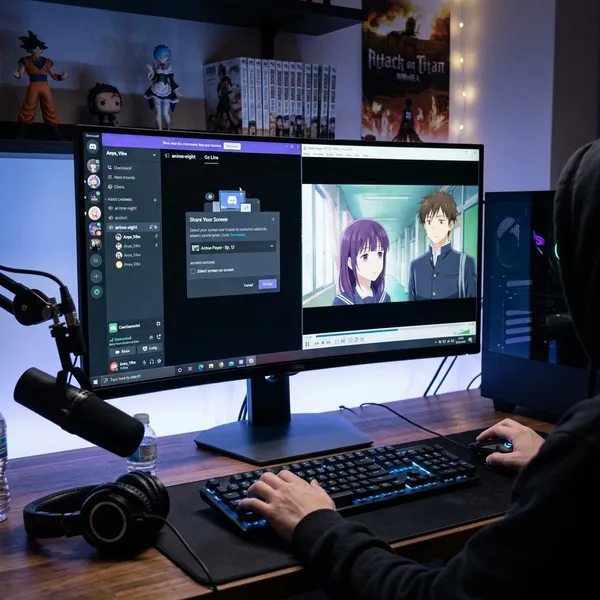
How to stream anime on Discord desktop
Discord desktop is usually the best choice because it gives you the clearest window selection and the most reliable application audio. Before inviting everyone in, open the episode in one dedicated browser or app window, close anything you do not want shown, and do a short test with one friend.
Join a voice channel or Discord call
Join a server voice channel or start a private call first. The screen-share or Go Live option appears from the voice controls, not from a normal text channel.
If you are in a larger server, check whether your role is allowed to stream. For a small friend group, a private call is often simpler; for a recurring anime night, a dedicated voice channel keeps people from joining the wrong place.
Open the permitted video source
Open the anime from a source you are allowed to use, then let the episode play for a few seconds before sharing. Discord is more likely to detect the correct window when the player is active instead of paused in a hidden tab.
Select the application window
Click the screen-share button and choose the specific browser or app window that contains the episode. Avoid full-display sharing unless you truly need it, because it exposes more of your desktop and can be less predictable with video players.
- Right choice: the active browser or app window with the anime playing.
- Risky choice: your entire screen with notifications, other tabs, and unrelated apps visible.
- Common mistake: sharing an old browser window after moving the anime tab somewhere else.
Enable application audio
Turn on the option to share application audio before starting the stream. If the picture works but nobody hears dialogue or music, this setting is one of the first things to check.
Start the stream and test playback
Start the stream, play a short scene, and ask one viewer to confirm three things: visible video, audible sound, and acceptable sync. If your microphone is much louder than the episode, lower your mic or stream volume before everyone settles in.
For a casual one-episode hangout, "stable and understandable" matters more than the highest possible quality. If the stream stutters, close downloads and extra tabs before changing a dozen Discord settings.
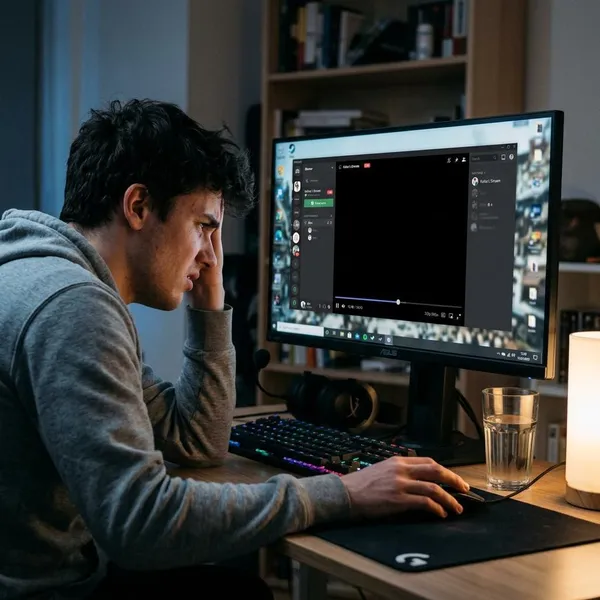
Why anime sometimes shows a black screen
A Discord black screen usually means the video is not being captured the same way it appears on the host's monitor. The most important split is simple: if Discord can share ordinary video but not the anime platform, DRM is likely involved; if nothing shares correctly, look at permissions, window choice, hardware acceleration, or outdated software.
The streaming service uses DRM protection
DRM, or Digital Rights Management, is a major reason licensed anime streams turn black for viewers. You may still see the episode normally on your own screen, but Discord may receive only a protected black video layer.
If a local clip shares fine but a paid streaming site does not, do not treat that as something to force through settings. Synced playback is usually the safer and more reliable option.
Discord lacks screen-recording permission
On macOS especially, Discord may need explicit screen-recording permission in system privacy settings. The stream can appear to start even when Discord is not allowed to capture the window properly.
After changing permissions, fully quit Discord and reopen it. Simply closing the settings menu is not always enough for the new permission state to apply.
The selected window is incorrect
A wrong-window mistake can look exactly like a technical failure. This happens when the anime is playing in one browser window while Discord is still sharing another, or when a tab was moved after the stream began.
Discord hardware acceleration causes capture problems
Hardware acceleration can make video playback smoother on your computer but harder for Discord to capture. The usual signs are a black screen, a frozen frame, or audio continuing while the image does not update.
This is worth testing after you have ruled out the obvious source and permission issues. Turning it off may slightly increase CPU use, but for a watch party, a stable picture is usually the better tradeoff.
Outdated software or drivers interfere with sharing
Old versions of Discord, your browser, your operating system, or your graphics driver can cause capture problems after media or security changes. This is especially likely if streaming worked before and suddenly stopped without you changing your usual setup.
Update in a sensible order: Discord first, then the browser, then the operating system, then graphics drivers if the issue continues. Restart before testing again.
How to fix a Discord black screen safely
Fix the black screen by narrowing the cause instead of changing settings at random. Start with an unprotected test video, then confirm the selected window, updates, permissions, and hardware acceleration. If the anime service still blocks capture, switch to synced playback rather than trying to bypass protection.
- Test a normal video first. This tells you whether Discord screen sharing works at all.
- Share the app window, not the whole display. It reduces mistakes and protects your privacy.
- Update and restart. Media capture fixes often need a clean relaunch.
- Recheck permissions. This is especially important on macOS and mobile.
- Try hardware acceleration last. It is useful, but it should not be your first guess.
- Use synced playback for DRM blocks. Everyone watches legally from their own account while chatting in Discord.
Test screen sharing with an unprotected video
Share a local video file, a personal clip, or another video source that is not likely to be DRM-protected. If your friends can see that video, Discord capture is basically working.
If that test fails too, focus on Discord permissions, app updates, or device settings. If it succeeds but the anime platform stays black, the streaming service itself is probably the limiting factor.
Select the application instead of the full display
Application sharing gives Discord one clear target. It also keeps private messages, desktop icons, and unrelated browser tabs off the stream.
This is the first thing I would change for a low-risk setup mistake: stop the stream, select the exact anime window, then test again. If you are hosting a longer movie night, this is much cleaner than leaving your whole desktop visible for two hours.
Update Discord and your operating system
Install available updates for Discord and your system, then restart the device. A restart is not just busywork; screen capture, audio routing, and graphics changes often do not behave properly until apps reload.
Recheck screen-recording permissions
Open your system privacy settings and confirm Discord has permission to record or share the screen. On macOS, this is one of the most common reasons a stream appears live but shows little or nothing to viewers.
On phones and tablets, permission prompts can also block screen capture. Mobile can work for a quick casual share, but it is not the best choice if you need dependable video and audio for a full group session.
Disable Discord hardware acceleration
Turn off hardware acceleration in Discord, restart the app, and test again. If the issue continues, check the same type of setting in your browser because the browser may be the part rendering the protected or GPU-accelerated video layer.
- Try this when: viewers hear audio but see black.
- Also try it when: the picture freezes while the episode keeps playing for you.
- Do not rely on it for: DRM-protected streams that block capture by design.
Use synced playback when DRM blocks capture
Synced playback means everyone opens the episode on their own legal account while staying together in Discord voice chat. Count down, press play together, and pause if someone falls behind.
How to fix missing anime audio
Missing audio is usually a setup issue rather than a DRM issue. Check the Discord client first, then the selected source, stream volume, audio devices, and finally restart the stream after each meaningful change.
The priority is different from black-screen troubleshooting: if the video is visible, you probably do not need to change graphics settings yet. Start with the audio path.
Check whether your client supports application audio
The Discord desktop app is the safest choice when you need application sound. Browser Discord and mobile screen sharing can be more limited depending on the device, operating system, and permissions.
If you are planning a proper watch session rather than a quick test, move to desktop before troubleshooting tiny settings. It removes one big variable immediately.
Share the correct application window
Audio normally follows the application you share. If the anime is playing in one Chrome window but you shared another Chrome window, viewers may see something on screen without receiving the episode audio.
Unmute the stream and raise its volume
Ask viewers to check the stream volume slider before you rebuild your setup. Discord stream volume and voice-chat volume are not always the same control, so one person may have muted only the stream.
- Host check: the anime tab or app is not muted.
- Viewer check: the stream volume is raised.
- Group check: nobody is confusing low volume with missing audio.
Check Discord input and output settings
Choose the correct output device in Discord, especially if you use Bluetooth headphones, USB speakers, a monitor with speakers, or a headset that recently reconnected. Viewers should do the same on their side if only one person reports silence.
Your microphone settings matter too, but for a different reason. If your mic is too sensitive, keyboard noise and room echo can drown out quiet dialogue, so muting during important scenes can make the stream easier to watch.
Restart the stream after changing audio settings
Stop sharing and start again after changing the audio source, output device, or application-audio toggle. Discord may not apply every audio change cleanly to a stream that is already live.
Conclusion
A smooth Discord anime night comes down to choosing the right source, testing audio before everyone starts watching, and knowing when a black screen is caused by DRM rather than your settings. Use the desktop app and application-window sharing when direct streaming is permitted; if a licensed platform blocks capture, synced playback is the practical fallback that keeps the watch session moving without risky workarounds.