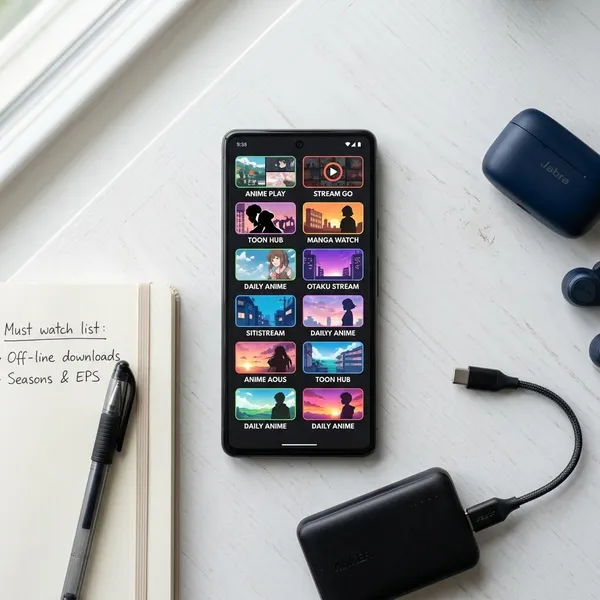
When an anime stream freezes, do not start by changing every setting at once. Check the most likely bottleneck first: weak Wi-Fi, a busy streaming service, a video quality setting your connection or device cannot keep up with, or a browser/app conflict. If the problem happens on every service, suspect your network or device; if it happens on only one service, test that platform before rebuilding your whole setup.
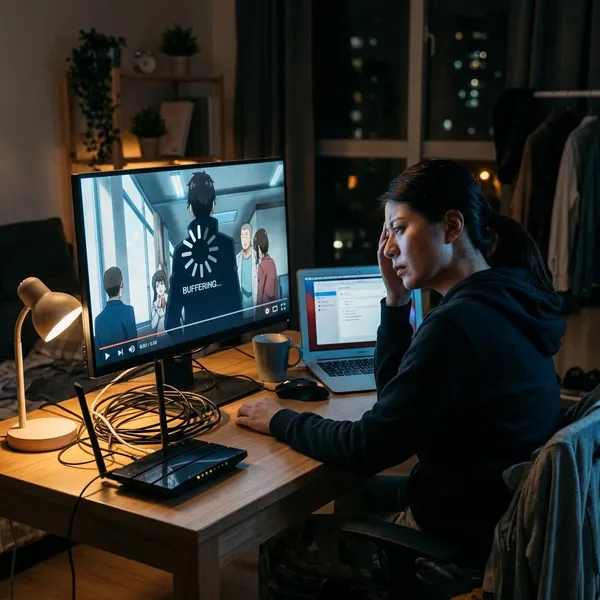
Why anime streams freeze
A frozen anime stream usually means one part of the playback chain cannot keep up. The weak point may be your Wi-Fi, the streaming platform, the browser or app, or the device doing the playback.
Unstable Wi-Fi or internet connection
Streaming needs a steady connection, not just a fast speed test. A connection can show good download speed and still freeze if the signal drops for a few seconds, packets are lost, or the router is struggling with too many devices.
Heavy traffic on the streaming service
Sometimes your home setup is fine and the anime platform is the problem. New episode drops, evening viewing hours, weekends, and popular seasonal releases can overload a service or make one region slower than usual.
High video quality for the available bandwidth
1080p can look better, but it also needs more consistent bandwidth and more device power. If the stream plays for a while and then pauses to load, dropping to 720p is often a better trade than fighting constant interruptions.
This matters most on shared Wi-Fi, older routers, hotel networks, student housing, and busy evening connections. A slightly softer picture is usually easier to live with than a sharp image that freezes during every action scene.
Outdated apps browsers or device software
Anime services change their players, ads, subtitles, and security systems over time. An old app, outdated browser, or neglected smart TV firmware may no longer handle the stream cleanly, even if it worked last month.
Corrupted cache or playback data
Cache is meant to make playback faster, but bad temporary data can cause loading loops, black screens, audio drifting away from video, or freezing at the same timestamp. If one episode keeps breaking in the same place, clearing cache is more targeted than restarting your whole network.
Limited device memory or processing power
Older smart TVs, low-end tablets, aging phones, and budget laptops can freeze because the device itself is struggling. HD video, subtitles, app overlays, browser tabs, and background apps all add load.
VPN extension or ad blocker conflicts
VPNs, proxies, privacy extensions, and ad blockers can interfere with anime players. The page may load normally while the video script, subtitle layer, ad handoff, or region check fails in the background.
If freezing happens only in one browser, test with extensions disabled or use a clean browser profile. If it happens only with a VPN on, try without it before assuming the streaming service is broken.
How to fix internet-related freezing
Start with the network if multiple apps freeze, the quality drops before playback stops, or the issue gets worse when other people in the home are online. Make one change at a time and test the same episode for a few minutes, otherwise it becomes hard to tell what actually helped.
Move closer to the Wi-Fi router
Move the device into the same room as the router and replay the stream. If freezing improves immediately, the problem is probably signal strength or interference, not the anime service.
Switch to a less congested Wi-Fi band
Try 5 GHz when you are near the router because it is often faster and less crowded. Use 2.4 GHz when you are farther away or behind several walls because it usually reaches better, even if it is slower.
If your router combines both bands under one network name, check the router app or settings to separate them temporarily. Testing each band in the room where you actually watch gives a more useful answer than guessing from signal bars alone.
Pause downloads and other streams
Pause game updates, cloud backups, large downloads, and other high-quality streams in the home. Then test the anime again.
If the freezing stops, your internet plan may be fine, but the household traffic is too heavy at that moment. This is especially common in the evening when phones, consoles, laptops, and TVs are all active at once.
Restart the router
Restarting the router can clear temporary memory problems and stale connections. Turn it off, wait about 30 seconds, turn it back on, and give it a few minutes to reconnect fully before testing.
Use a wired connection when possible
Ethernet is the best test for separating Wi-Fi trouble from everything else. If a laptop, console, smart TV, or streaming box works smoothly on a cable, your internet service is probably not the main issue; the Wi-Fi path is.
Test without a VPN or proxy
Turn off the VPN, proxy, custom DNS tool, or routing extension and reload the stream. These tools can add latency, send traffic through crowded servers, or trigger platform restrictions.
If playback improves, you can try another VPN server or protocol later. For troubleshooting, the clean test matters more than keeping every privacy tool active while you diagnose the freeze.
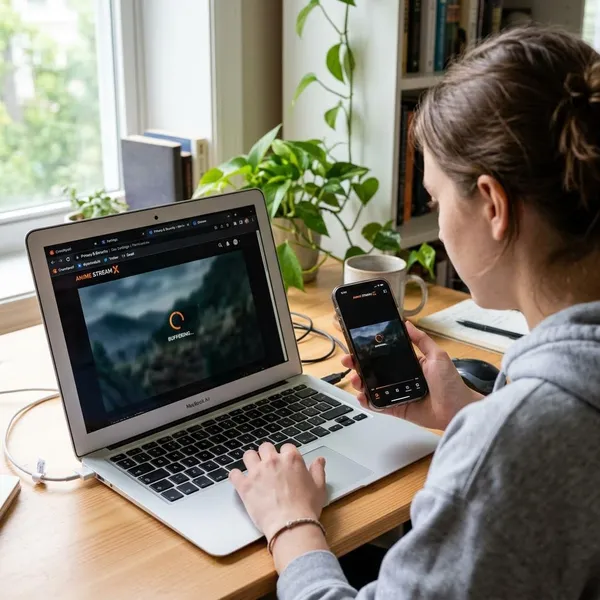
How to fix browser and app playback
If your connection looks stable but one app or browser keeps freezing, refresh the playback environment. The practical order is: update first, clear stored data next, remove extension conflicts, then reinstall or switch browsers if the problem stays.
Update the streaming app or browser
Install pending updates for the streaming app, browser, and the device you are using. Streaming platforms often patch player bugs and compatibility issues quietly, so an outdated version can freeze even when your network is perfectly usable.
After updating, fully close and reopen the app or browser. On smart TVs and streaming sticks, restarting the device after an update is often more reliable than jumping straight back into the episode.
Clear cache and temporary data
Clear the browser cache or the app's temporary data if playback loops, freezes at the same point, or behaves strangely after an app crash. You may need to sign in again, but this is one of the cleanest fixes for corrupted playback files.
Disable extensions and ad blockers temporarily
Disable ad blockers, privacy extensions, script blockers, and video-related add-ons, then reload the stream. If the episode plays normally, turn extensions back on one by one until you find the conflict.
A private window can be useful for testing because many browsers disable extensions there by default. If the stream works in a clean window but not in your normal browser, the problem is probably your browser setup.
Sign out and back into the service
Sign out, close the app or browser, reopen it, and sign back in. This refreshes your account session and can fix odd playback errors after password changes, profile switches, failed logins, or broken watch-progress syncing.
Reinstall the app
Reinstall the app when updating and clearing data do not help, or when the app is slow in menus as well as during playback. Delete it fully, restart the device, and install it again from the official store.
Try another supported browser
Switch to another supported browser and test the same episode. A different browser gives you a clean comparison because it uses different media handling, settings, and extensions.
If the second browser works, you can either keep using it for streaming or clean up the original browser by removing conflicting add-ons and resetting media-related settings.
How to fix freezing on different devices
The same anime stream can behave differently on a phone, laptop, TV, and streaming stick. When only one device freezes, stop changing the whole network and focus on that device's storage, memory, updates, and hardware limits.
Free storage and memory on phones
Delete unused downloads, remove large files you no longer need, close background apps, and restart the phone. A nearly full phone can struggle to create temporary playback files, especially on lower-end models.
Also check battery saver settings. Some aggressive power-saving modes restrict background activity so heavily that the streaming app becomes less stable when you switch apps or lock and unlock the screen.
Close resource-heavy programs on computers
Close game launchers, editing software, cloud sync tools, and unnecessary browser tabs before streaming. If your laptop fan gets loud or the computer feels hot, local performance may be the cause rather than your internet.
Restart smart TVs and streaming devices
Use a full restart, not just the remote's power button. If possible, unplug the TV, streaming stick, or box for about 30 seconds, then start it again.
Update device firmware
Check the device settings for firmware or system updates, especially on smart TVs and streaming boxes. App updates alone may not be enough if the device software is too old for the streaming platform's current player.
If a service started freezing after a redesign, firmware becomes more important. Complete the update process and restart once more if the device asks for it.
Reduce video quality on older hardware
Lower the stream from 1080p to 720p, or choose an even lower setting if the device is old. This reduces both network demand and the amount of work the device must do to decode video and display subtitles.
How to prevent anime streams from freezing
Once playback is smooth again, keep the setup realistic. Most repeat freezing comes from the same weak Wi-Fi spot, the same overloaded device, or the same quality setting being pushed too hard during busy hours.
Use a stable network connection
Watch from a strong Wi-Fi area or use Ethernet for fixed devices such as TVs, consoles, and desktop computers. Router placement matters: an open, central location is usually better than a cabinet, shelf corner, or space behind the TV.
Choose a realistic video quality
Use auto quality if it adapts well, but manually choose 720p when the player keeps reaching too high and then freezing. This is a sensible setting for shared Wi-Fi, older devices, and busy evening viewing.
Keep apps and devices updated
Check updates for the streaming app, browser, TV firmware, phone system, or streaming box software every so often. Do this especially after a service redesign or when only one device suddenly starts freezing.
Limit background network activity
Schedule large downloads, console updates, cloud backups, and file syncing outside your watch time when possible. This is a small habit, but it prevents a lot of evening buffering in busy households.
Do not overlook quiet bandwidth users such as security cameras, laptops syncing photos, or game consoles downloading patches in standby mode.
Download episodes for offline viewing when available
If the service offers offline downloads, use them before travel, weak hotel Wi-Fi, long commutes, or known busy release times. Downloads remove most network-related freezing because the episode is already on the device.
Conclusion
The smartest fix is to follow the pattern instead of guessing: every service freezing points toward Wi-Fi or device limits, one service freezing points toward the platform or app, and one device freezing points toward storage, updates, or weak hardware. Start with the simplest test that matches your situation, then change one thing at a time so you know what actually solved it.