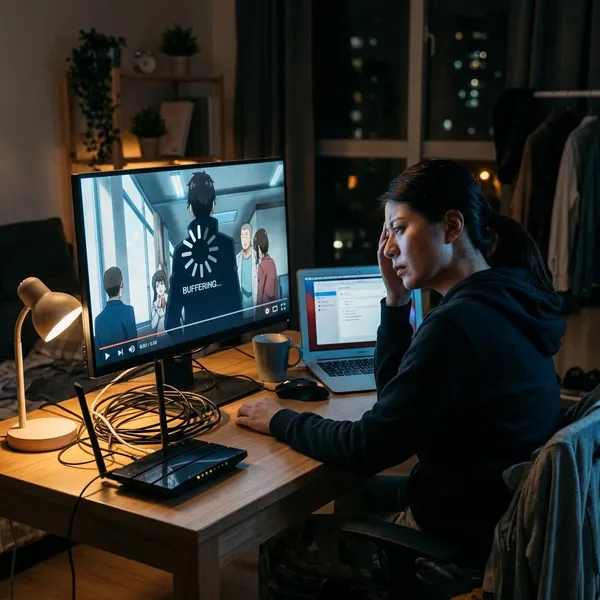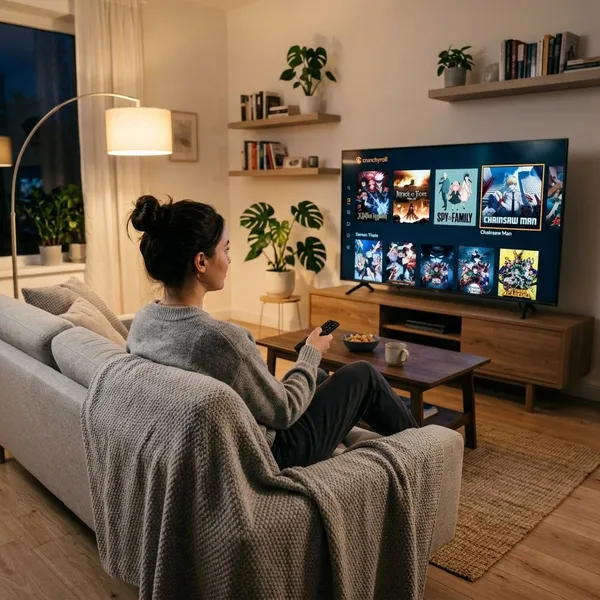
The easiest way to cast anime to Chromecast is to use the Cast button inside a supported app, because the TV handles the stream and your phone becomes the remote. If that option is not available, Chrome tab casting is usually the next-best choice, while Android screen mirroring is a fallback for apps or sites that refuse to cast normally.
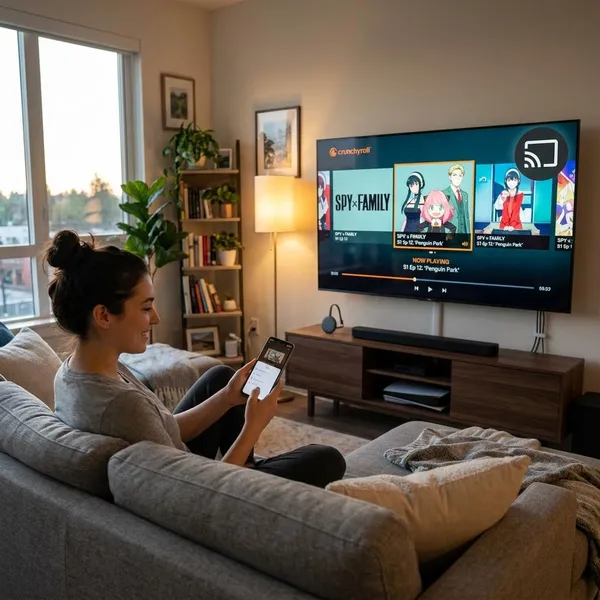
The fastest ways to cast anime
Start with the method that sends the cleanest stream to the TV. For a full evening of episodes, direct app casting is worth getting right. For a one-off episode from a browser, Chrome casting may be enough. Mirroring is useful, but I would not make it the default unless the other two options fail.
| Method | Best for | Main catch |
|---|---|---|
| Supported anime app | Crunchyroll or another app with a Cast icon | The app must support Google Cast |
| Chrome tab casting | Watching from a laptop, desktop, or Chromebook | Depends more on browser and Wi-Fi stability |
| Android screen mirroring | Unsupported apps or awkward web players | More battery drain, more lag risk |
How to cast Crunchyroll to Chromecast
Crunchyroll is usually straightforward with Chromecast when the app, phone, and TV can see each other on the same local network. The important part is to connect to the Chromecast first, then start the episode and check subtitles or dubbed audio before you settle in.
Open the Crunchyroll app
Open Crunchyroll on your phone or tablet and let the home screen load fully. If the app opens normally but no Cast icon appears, check Wi-Fi first: your phone should be on the same home network as the Chromecast, not mobile data or guest Wi-Fi.
On iPhone or iPad, also check whether Crunchyroll has local network permission enabled. Without that permission, the app may stream fine on the phone but still be unable to discover your TV.
Select the Cast icon
Tap the Cast icon in the Crunchyroll app and wait for the device list. Do not rush this step; on some networks the Chromecast takes a few seconds to appear, especially after the TV has just been turned on.
Choose your Chromecast or Google Cast TV
Select the correct Chromecast, Google TV, or Cast-enabled TV from the list. In a home with several TVs, check the room name before tapping, because sending an episode to the wrong screen is an easy mistake.
If the device appears but will not connect, open Google Home and confirm the Chromecast is reachable there. If Google Home cannot see it either, fix the network or device connection before blaming Crunchyroll.
Start the episode and adjust the language settings
Once the cast connection is active, start the episode and check subtitle and audio settings right away. This matters most for shows where you switch between subbed and dubbed versions, or where subtitle timing makes fast dialogue easier to follow.
- Subtitles missing: stop playback, reselect the language option, then restart the episode.
- Wrong dub: change the audio track before you are several minutes in.
- Controls feel slow: wait a moment after connecting before repeatedly tapping play or pause.
Disconnect through the Cast menu when finished
Stop casting from the Cast menu instead of only closing the Crunchyroll app. That ends the TV session cleanly and avoids the odd situation where the next person opens the TV and finds your previous episode still attached to the Chromecast.
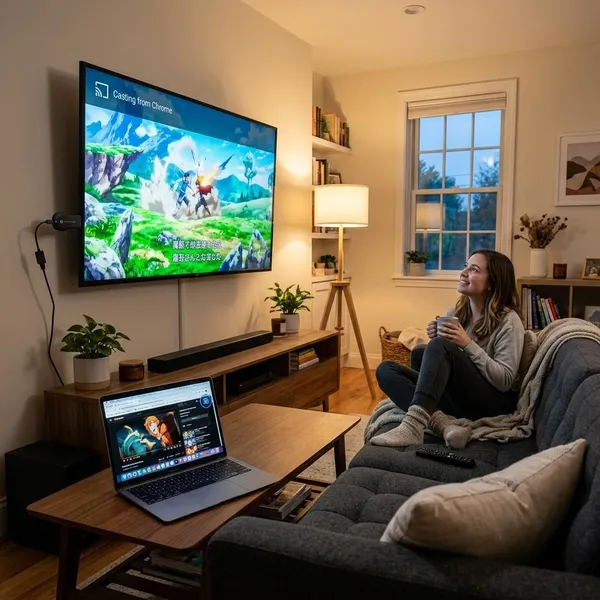
How to cast anime from Chrome
Chrome is useful when you are watching from a legal streaming site rather than an app. It is not always as polished as native casting, but it is a solid workaround from a laptop, desktop, or Chromebook when the site already plays well in the browser.
Open the legal streaming site in Chrome
Open the streaming site in Chrome, sign in if needed, and load the episode page before casting. Test that the video plays in the browser first; casting will not fix a broken player, login issue, or region error on the site itself.
For smoother playback, close heavy tabs and apps before starting. This is especially worth doing on an older laptop, where Chrome tab casting can stutter if the computer is already under load.
Select Cast from the browser menu
Click Chrome's three-dot menu and choose Cast. Chrome will scan for compatible devices on the same local network, including Chromecast devices and TVs with Google Cast built in.
Choose Cast tab for video and sound
Select Cast tab as the source. For anime streaming, this is usually cleaner than casting the whole desktop because it sends only the browser tab and its audio to the TV.
Desktop casting can still be useful if a site behaves strangely in tab mode, but it is easier to expose notifications, other windows, or private tabs by accident. For a shared living room TV, tab casting is the safer first try.
Select the TV or streaming device
Choose the TV or Chromecast you want to use. If the device name is unclear, look at the TV screen for a connection message before starting the episode.
- Device not listed: check both devices are on the same network.
- Listed but failing: restart Chrome and the Chromecast.
- Office or dorm Wi-Fi: device isolation may block casting even when internet works.
Start playback after the connection is active
Wait until Chrome shows the tab is casting, then press play. Test the sound before going full screen so you know the audio is coming through the TV rather than your computer speakers.
If the video becomes choppy, reduce the stream quality one step or move closer to the router. Browser casting depends on both your computer and Wi-Fi, so small changes can make a real difference.
How to mirror anime from an Android device
Android screen mirroring is the "just put my phone on the TV" option. It is flexible because it does not need the anime app to support Google Cast, but it also makes your phone do more work, so it is better for temporary use than for regular long sessions.
Open the device in Google Home
Open Google Home on your Android device and tap your Chromecast or Cast-enabled TV. If the device is missing from Google Home, solve that first; the anime app is not the problem until the Chromecast is visible at the system level.
Select Cast screen
Tap Cast screen or Cast my screen, then confirm the prompt. Once mirroring starts, everything on your phone can appear on the TV, including notifications, menus, and accidental app switches.
Before pressing play, turn on Do Not Disturb. It is a small step, but it prevents message previews from popping up during a shared watch session.
Play the episode on your phone
Open the anime app or browser player on your phone and start the episode. Full-screen mode usually gives the cleanest TV view, but keep the phone steady and avoid rotating it during playback.
This method is fine for a quick workaround. For regular watching, especially if you care about smooth subtitles and stable audio, native app casting or Chrome casting is usually less frustrating.
Keep the screen active during playback
Keep the phone awake while mirroring. If the screen locks, the TV may freeze, disconnect, or stop updating properly.
- One short episode: battery power may be enough.
- Several episodes: plug in the charger before starting.
- Weak Wi-Fi: expect more lag than with direct casting.
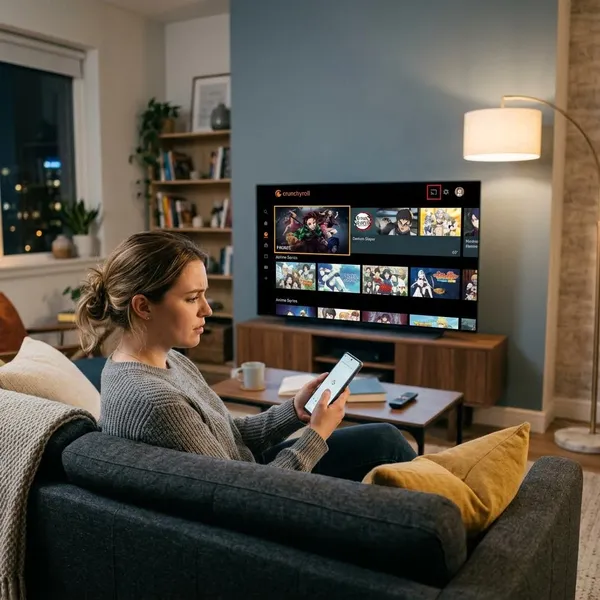
Why the Cast icon is missing
A missing Cast icon usually means the app cannot discover the Chromecast, not that the Chromecast is broken. The fastest check is simple: open Google Home. If Google Home cannot see the device, look at the network or Chromecast setup. If Google Home can see it but the anime app cannot, focus on app permissions or whether that app supports Google Cast.
The devices are using different networks
Your phone, computer, and Chromecast need to be on the same local network. Internet access alone is not enough, because casting depends on local device discovery.
Check for guest Wi-Fi, mobile data, VPN use, and similar-looking network names. If your router has separate 2.4 GHz and 5 GHz names, connect both devices to the same named network as a quick test.
Local network permission is disabled
On iPhone and iPad, local network permission can hide the Cast icon even when Wi-Fi is correct. Open the device settings, find the anime app, and allow local network access if the option is available.
After changing the permission, fully close and reopen the app. Many apps do not rescan for Cast devices until they restart.
The app does not support Google Cast
Some anime apps simply do not include Google Cast support. If there is no Cast feature in that app, restarting the phone or router will not create one.
The practical workaround is to try the service's legal website in Chrome. If that also fails or performs badly, Android mirroring may be the only usable option for that service.
The Chromecast cannot be discovered
A Chromecast can be powered on and still fail discovery. Restart the Chromecast, reopen Google Home, and check whether it appears before testing the anime app again.
- Worked yesterday: restart the Chromecast and router first.
- New setup: confirm the Chromecast finished setup in Google Home.
- Mesh Wi-Fi: try keeping the phone near the same access point as the TV.
A guest network is blocking device communication
Guest networks often block devices from talking to each other. That is useful for privacy, but it breaks the local discovery Chromecast needs.
Move both the phone or computer and the Chromecast to the main home network. If you control the router, settings such as AP isolation, client isolation, or device separation can cause the same problem.
Conclusion
For most people, the best order is simple: use the anime app's Cast button if it has one, use Chrome tab casting from a computer if the app does not cooperate, and save Android mirroring for temporary workarounds. When casting fails, check device discovery before changing random settings; same network, app permission, and Google Home visibility solve more problems than anything else.